
Get paid
Set up online payments in about 10 minutes
Stripe’s sign-up form is long and asks things most tradespeople have never thought about. This guide walks through each screen, one by one, so you know exactly what to pick. It takes about ten minutes.
Screens as of October 19, 2026. Some pictures come from Stripe’s practice (test) mode and some from a real setup, with any email, bank and account details hidden or made up. Stripe’s screens can change; if yours differs, follow the on-screen labels.
Have these ready
- The last 4 digits of your Social Security number
- Your date of birth
- Your home address
- A phone that can receive text messages
- Your bank login, or your bank’s routing and account numbers
- Your website, if you have one
Keep this page open in one tab and Stripe in another.
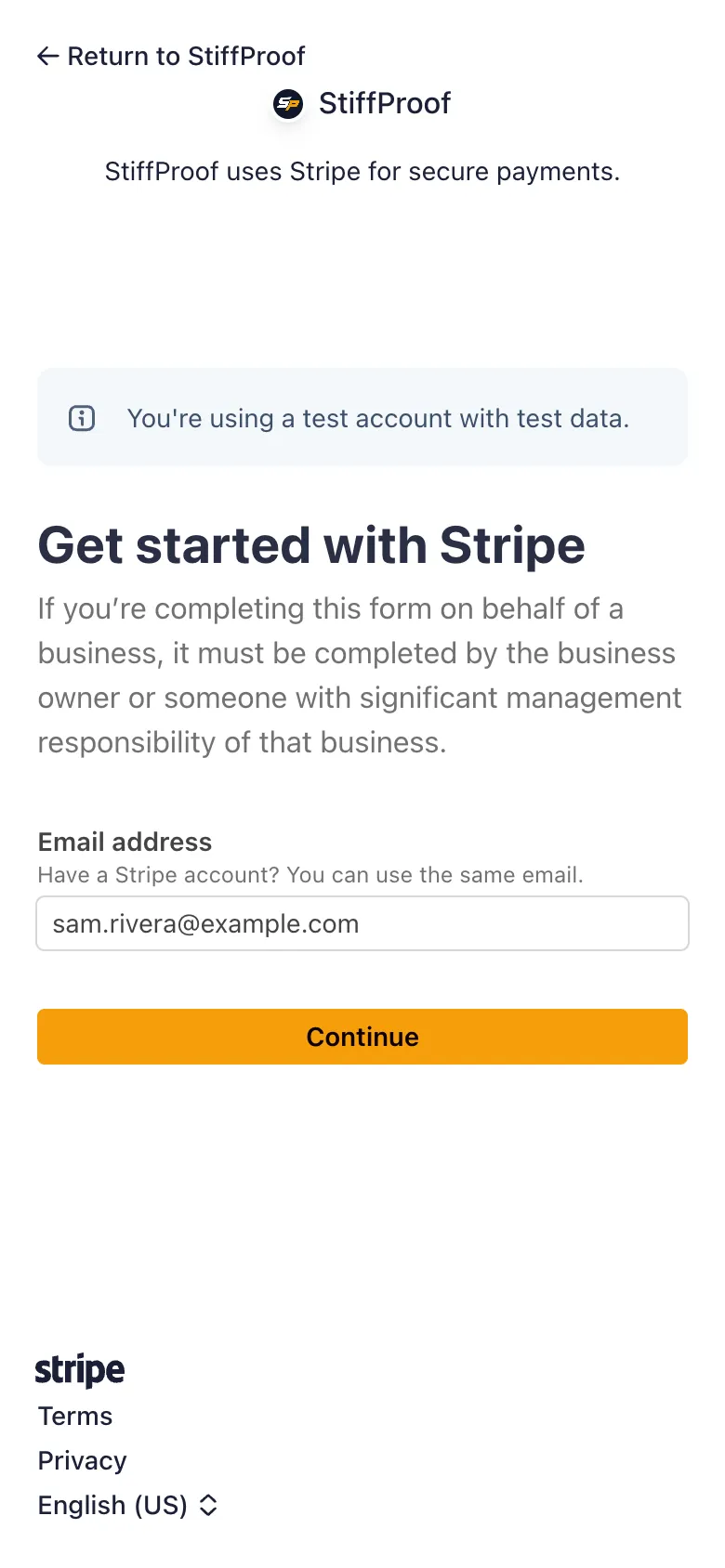
Step 1 of 10 · Stripe screen: Get started with Stripe
Enter your email address
What to pick
- Use the email you want Stripe to use. If you already have a Stripe login, use that same email.
Why
One login for everything. Stripe will ask for that account’s password next.
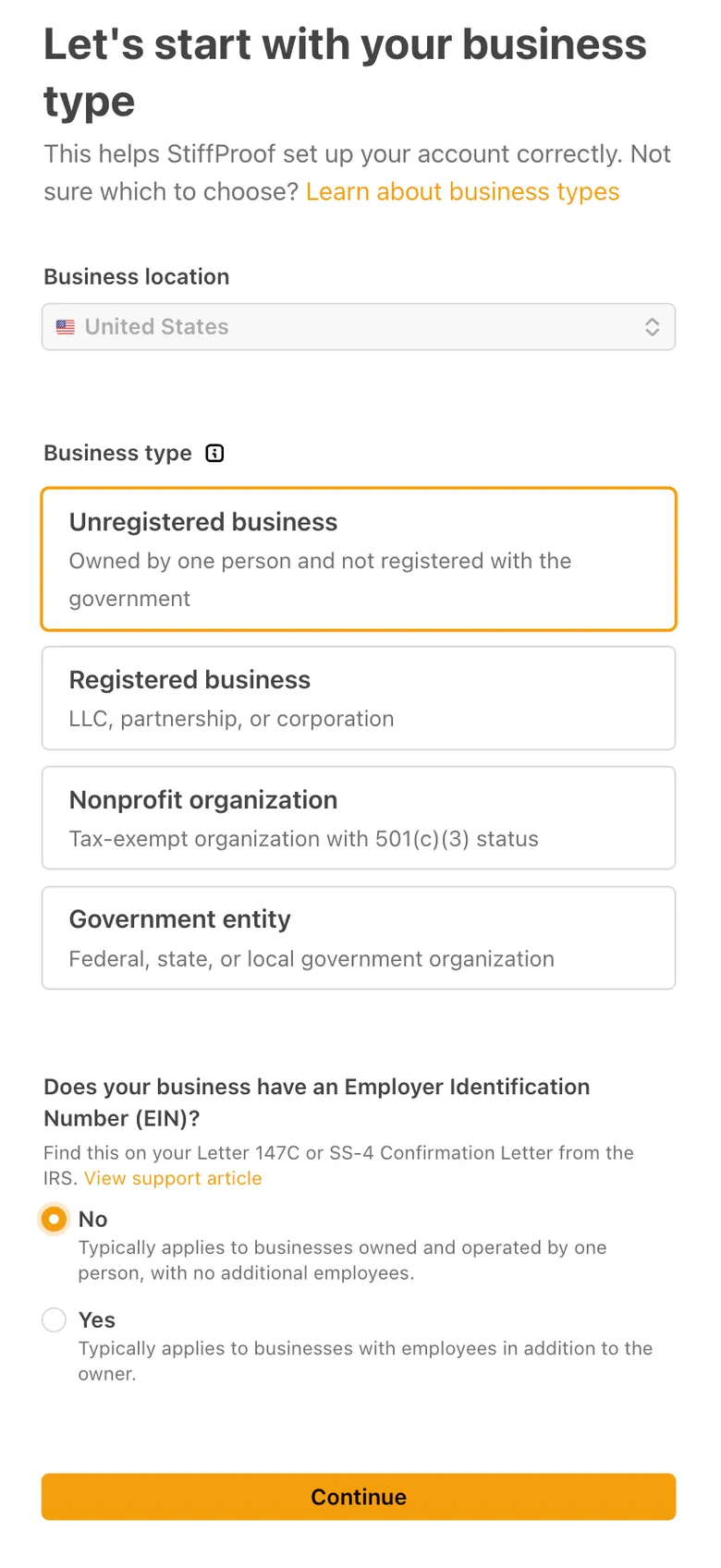
Step 2 of 10 · Stripe screen: Business type
Say what kind of business you are
What to pick
- Location: United States.
- If it’s just you and you don’t have an LLC or EIN, choose “Unregistered business”. If you have an LLC or corporation, choose “Registered business”.
- Employer Identification Number (EIN): choose “Yes” only if the IRS gave you one (it’s on your Letter 147C or SS-4 confirmation). Otherwise choose “No”; Stripe uses your Social Security number instead.
Why
Matches how you file taxes. A wrong choice means Stripe asks for documents you don’t have.
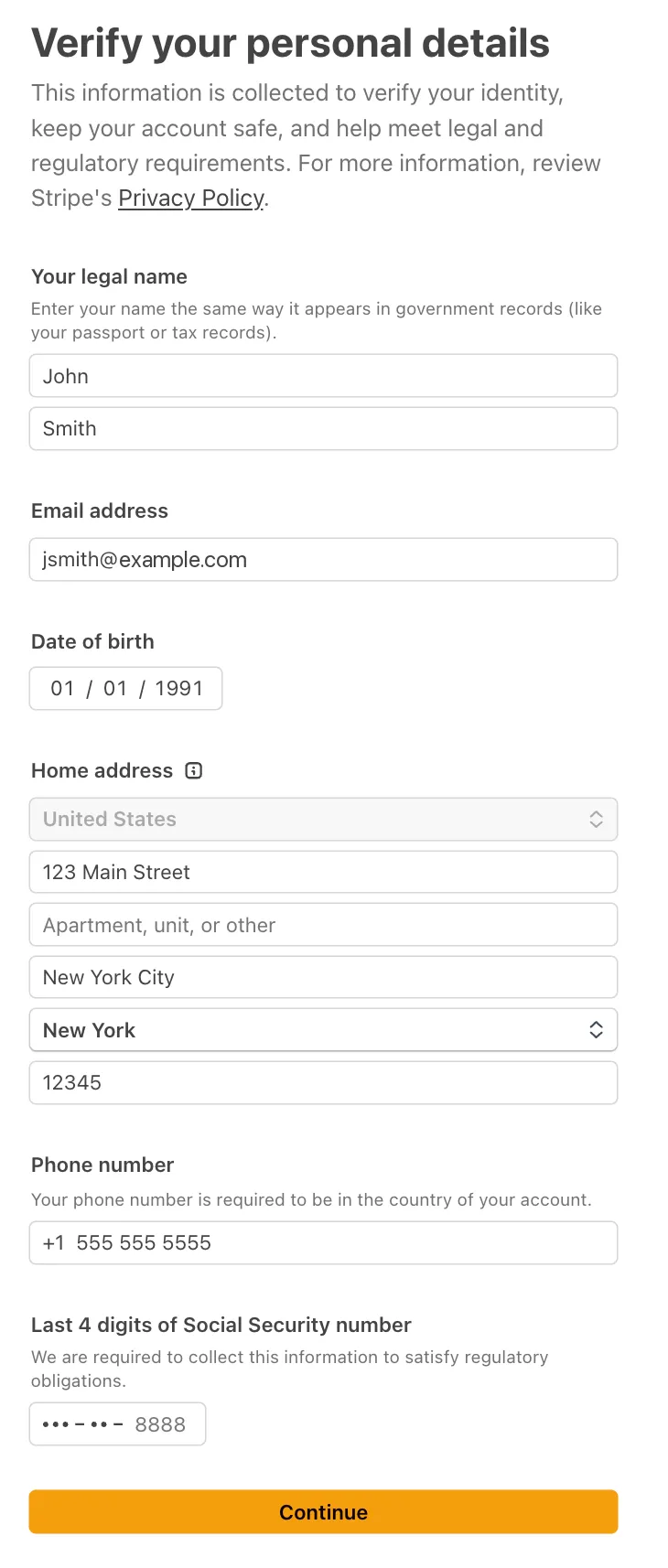
Step 3 of 10 · Stripe screen: Verify your personal details
Enter your details exactly as they appear on your ID
What to pick
- Legal name: first and last name only, the same way they appear on your driver’s license. No nicknames.
- Date of birth, home address (where you live, not a PO box), and a US mobile number.
- The last 4 digits of your Social Security number.
Why
Stripe checks these against government records. A mismatch makes the check fail, and you may get asked for a photo ID afterwards. That’s normal.
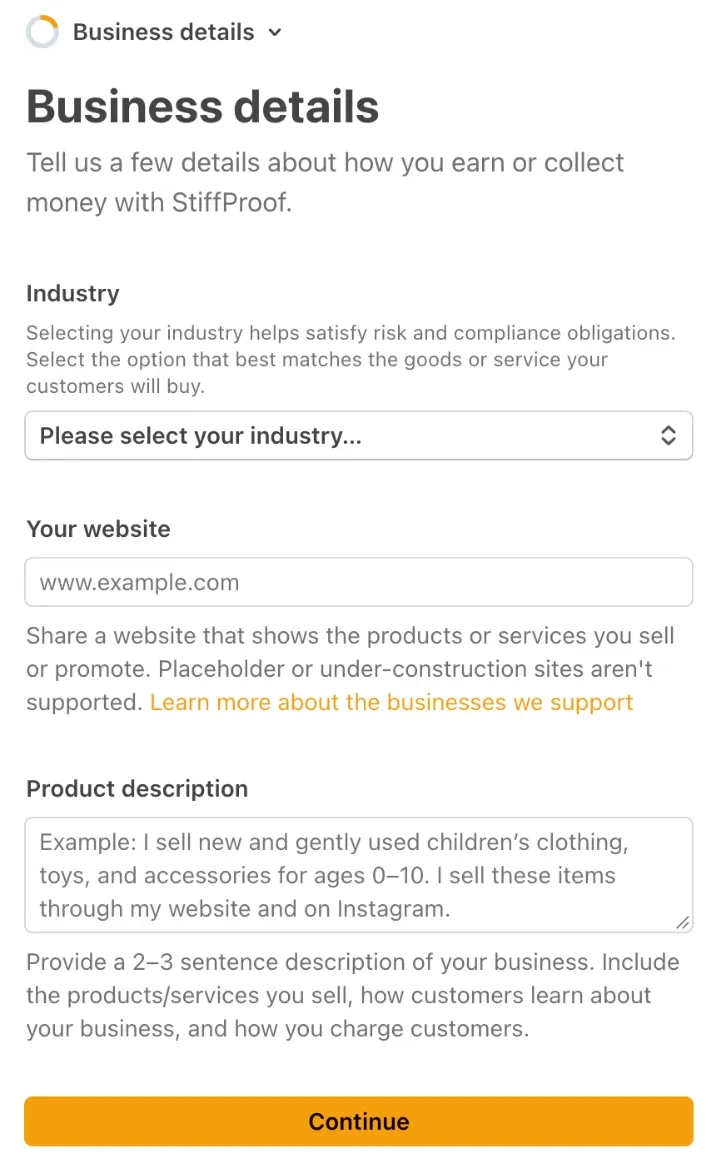
Step 4 of 10 · Stripe screen: Business details
Tell Stripe what your business does
What to pick
- Industry: type a word like “plumbing” or “cleaning” to search.
- Website: enter yours, if it shows your work. If you don’t have one, use the description Stripe offers instead.
- Description: copy the example below and fill in the brackets.
Why
Stripe reviews accounts against this. A vague answer can hold your account for review.
Product description (edit the brackets)
[Business name] does [what you do] for [who: homeowners, small businesses] in [area]. Clients find us through [referrals, our website, Google]. We invoice per job through StiffProof, and clients pay online by card or bank transfer.
Step 5 of 10 · Stripe screen: Payout details
Pick how you want to receive payouts
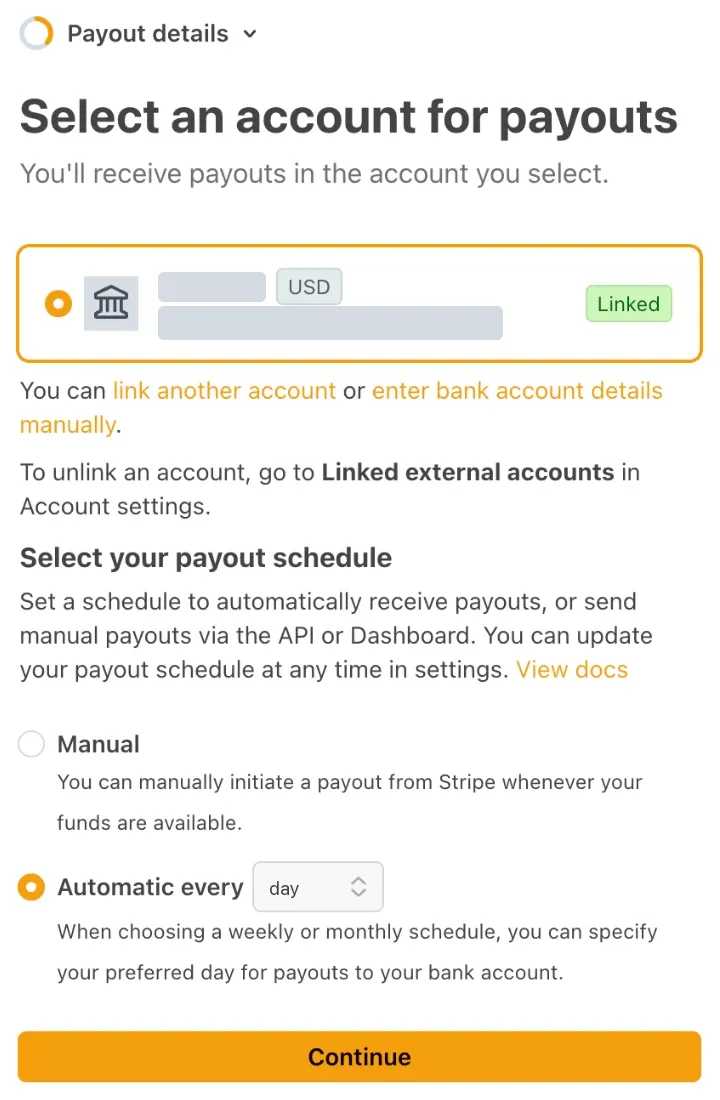
What to pick
- Your business checking account.
- Schedule: choose “Automatic every” and set the box to “day”.
Why
Manual means money sits in Stripe until you remember to click.
Step 6 of 10 · Stripe screen: Public details
Set what clients see on their statement
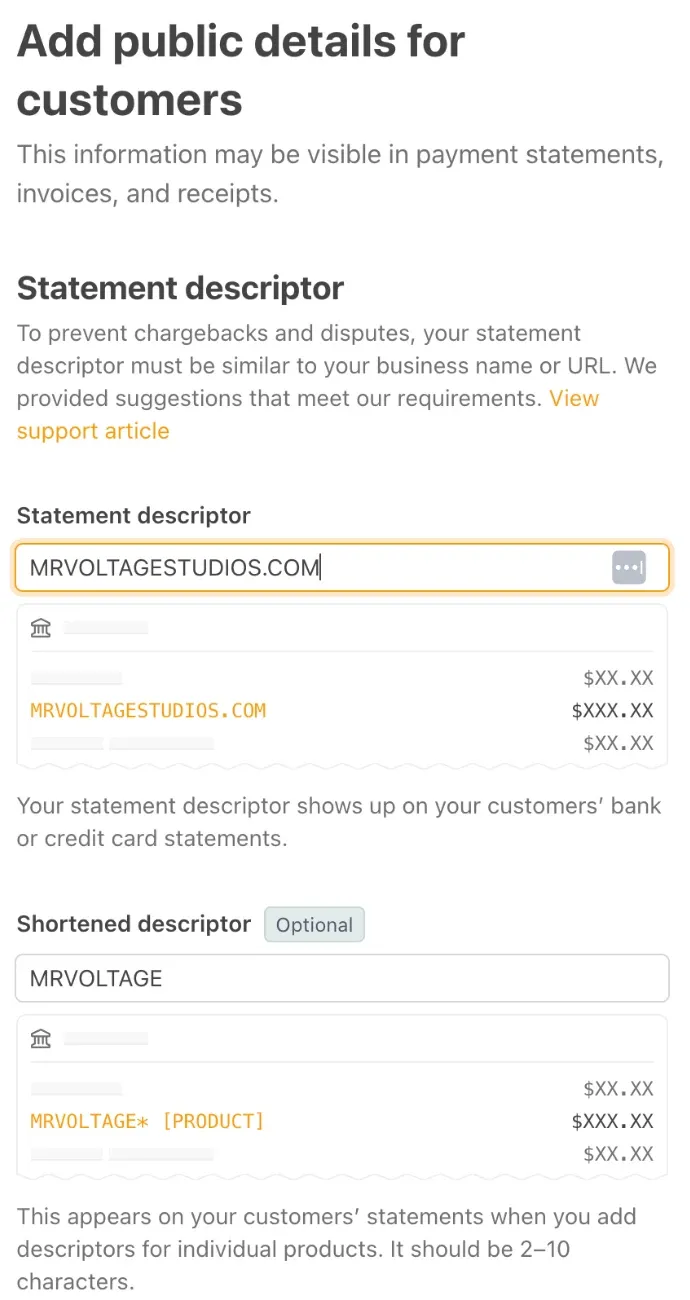
What to pick
- Statement descriptor: your business name or website, the way clients know you.
- Shortened descriptor (optional): the first 2–10 letters of the name above, cut at a whole word so it doesn’t look like a typo.
- Support phone: a number clients can call; it shows on receipts.
Why
Clients who don’t recognize a charge may dispute it, and a dispute costs $15.
Statement descriptor
RIVERA PLUMBING Shortened: RIVERA
Step 7 of 10 · Stripe screen: Fraud protection
Choose the free fraud plan
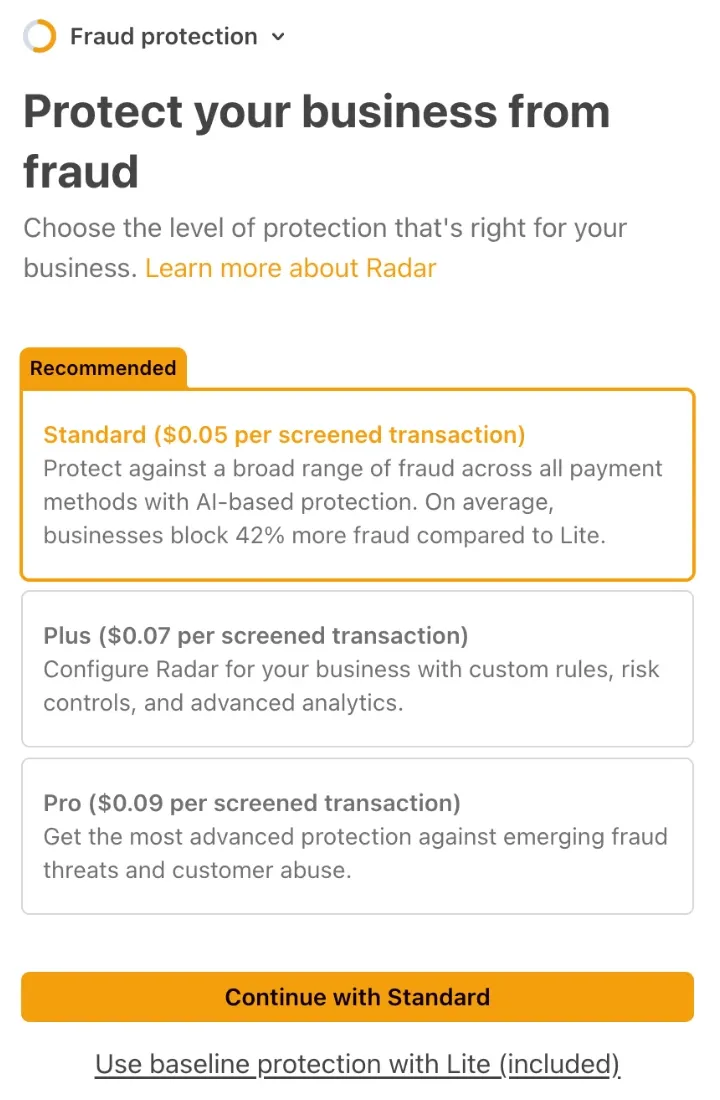
What to pick
- Click the small underlined link “Use baseline protection with Lite (included)”. Do not click the orange “Continue with Standard” button.
Why
Lite is free and enough for invoices to clients you know. Standard costs extra on every payment; Stripe shows the price on that screen.
Step 8 of 10 · Stripe screen: Tax calculation
Skip Stripe Tax for now
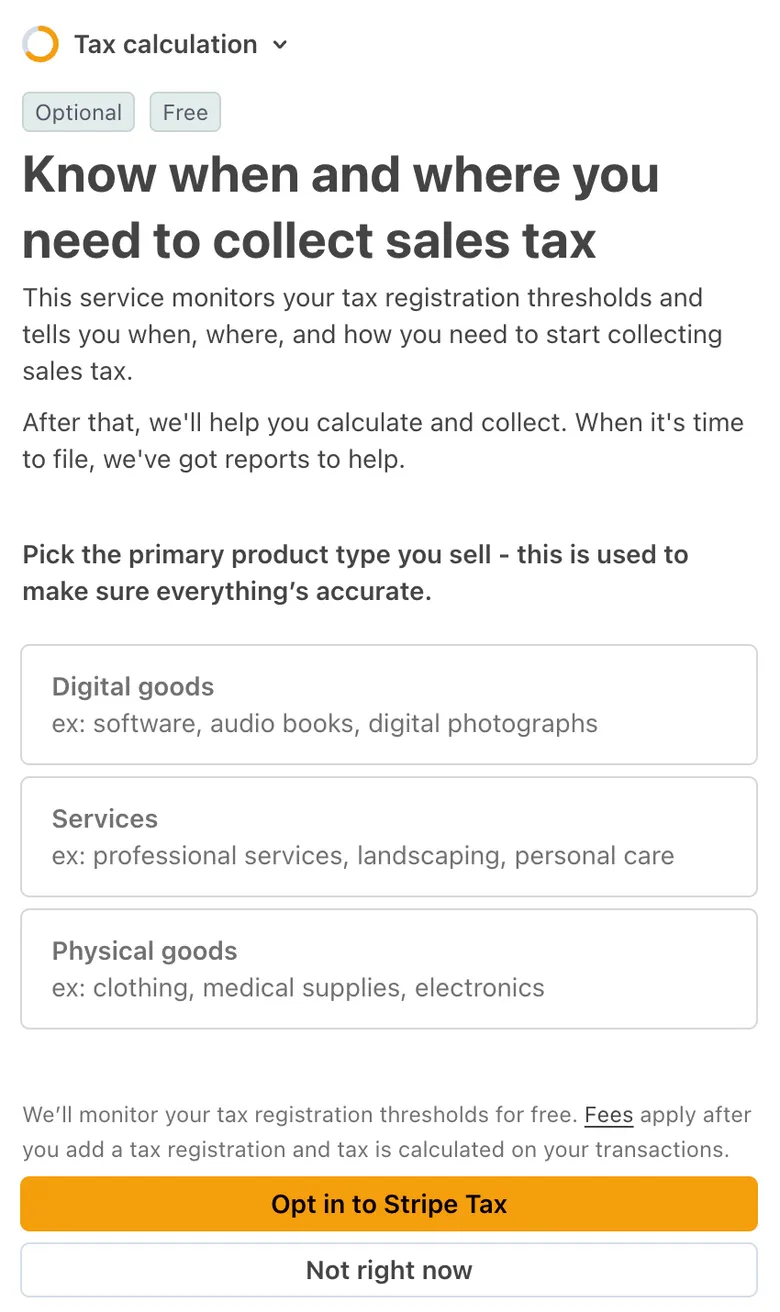
What to pick
- Choose “Not right now”.
Why
StiffProof already adds your sales tax to the invoice. Stripe Tax would be a second tool that isn’t needed here.
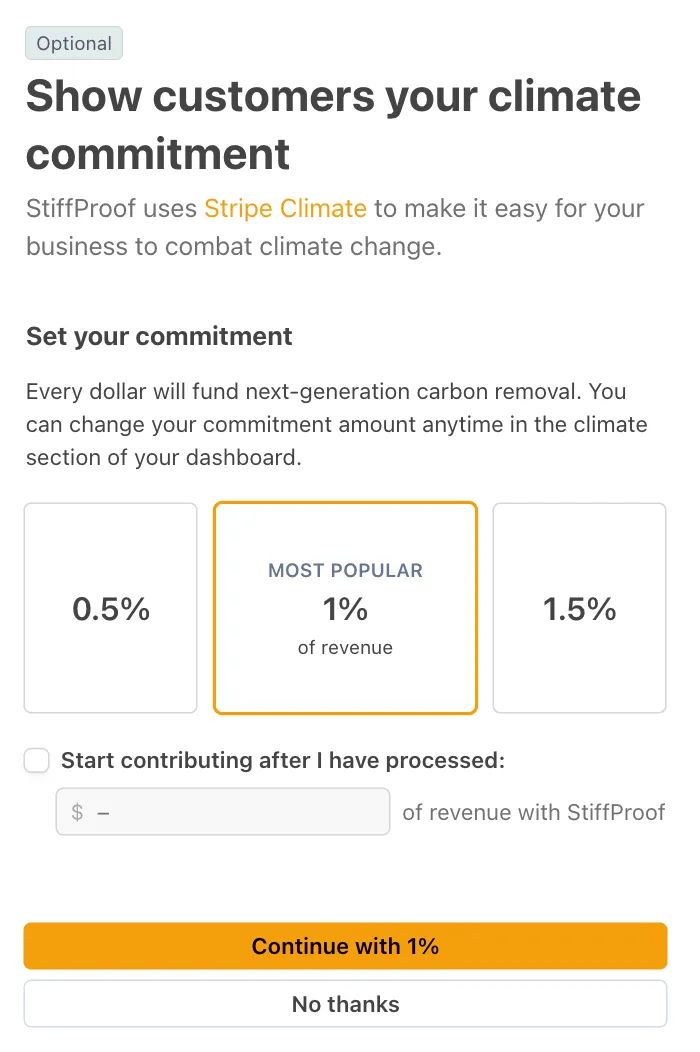
Step 9 of 10 · Stripe screen: Climate commitment (optional)
Decide on the climate contribution
What to pick
- This screen is optional and may not appear. If you don’t want to give, choose “No thanks” at the bottom; the orange button signs you up.
Why
Stripe Climate gives a share of your revenue to carbon removal. You can switch it on or off later in your Stripe dashboard.
Step 10 of 10 · Stripe screen: Review and submit
Check your details and submit
What to pick
- Stripe lists everything you entered, section by section. Read it through and use the link beside any section to fix a mistake.
- When it all looks right, submit it with the button at the bottom.
Why
Stripe will send you back to StiffProof and the card on your account page will say it’s checking your details.
What happens next
- Stripe checks the details you entered, usually minutes, sometimes a day or two.
- When Stripe is done, your StiffProof account shows that online payments are on.
- Your first payout usually takes 7 to 14 days after your first payment.
- Card payments after that usually reach your bank 2 business days after the client pays.
The money goes straight into your own Stripe account; StiffProof never holds it. What it costs, and how it compares, is on the Get paid page.
Go to my account